Knowledge
Knowledge is the team handbook. Collections hold pages, pages are markdown, and a page can be related to tasks and work items.
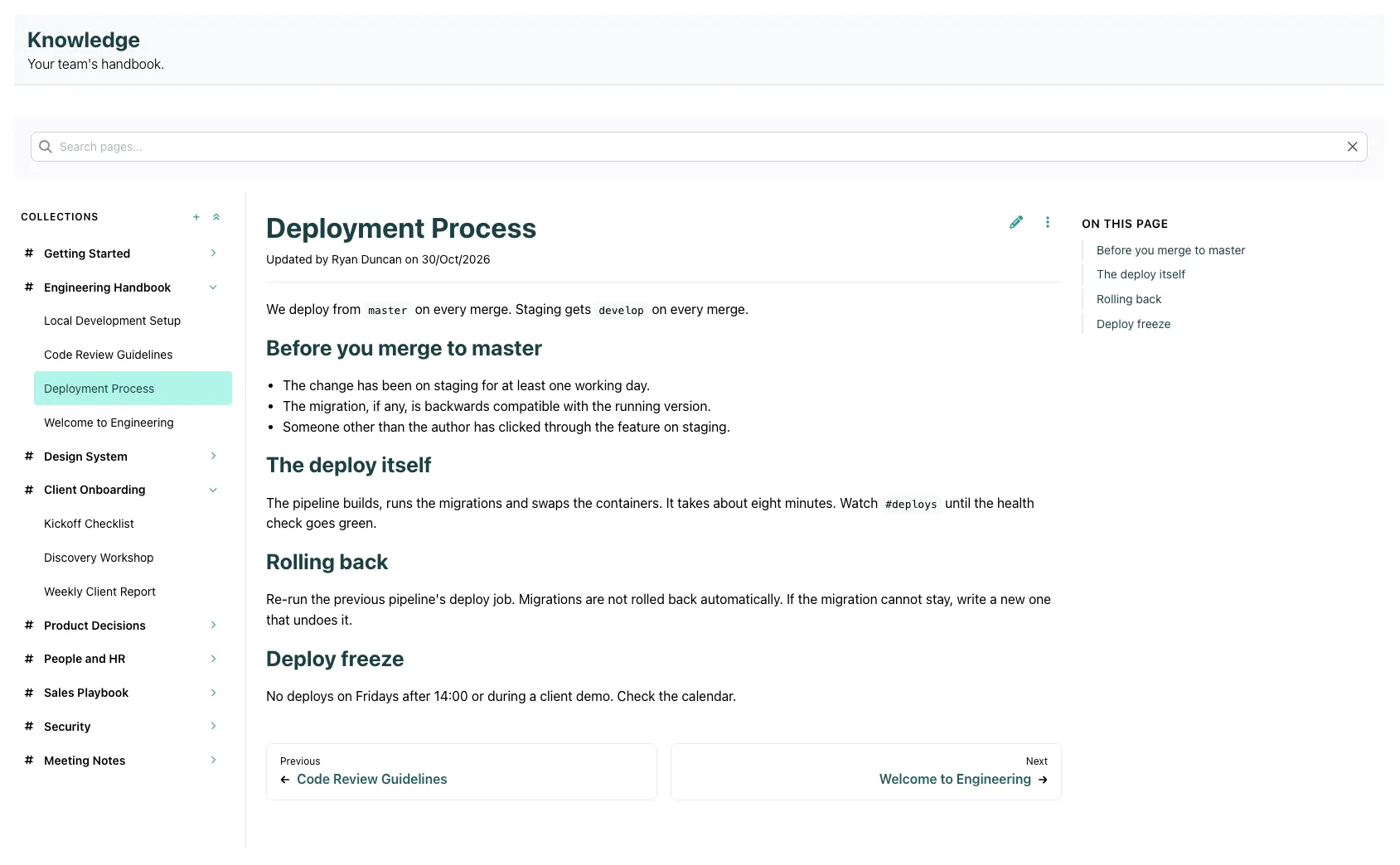
The screen has three parts. The sidebar on the left lists every collection and, when one is open, its pages. The middle shows what you picked: the home view, a collection overview, or a page. The right column shows the headings of the open page when it has three or more.
Opening Knowledge shows the ten most recently updated pages across every collection. Pick a collection on the left to go further.
Collections
Section titled “Collections”A collection is an ordered list of pages. It has a name and a slug, used in its URL.
| Field | Values |
|---|---|
| Name | Text. |
| Slug | Generated from the name. Can be changed. |
The plus next to Collections creates one. The gear next to a collection’s title opens its settings, where it is renamed or deleted. Deleting a collection deletes every page in it, together with their relations.
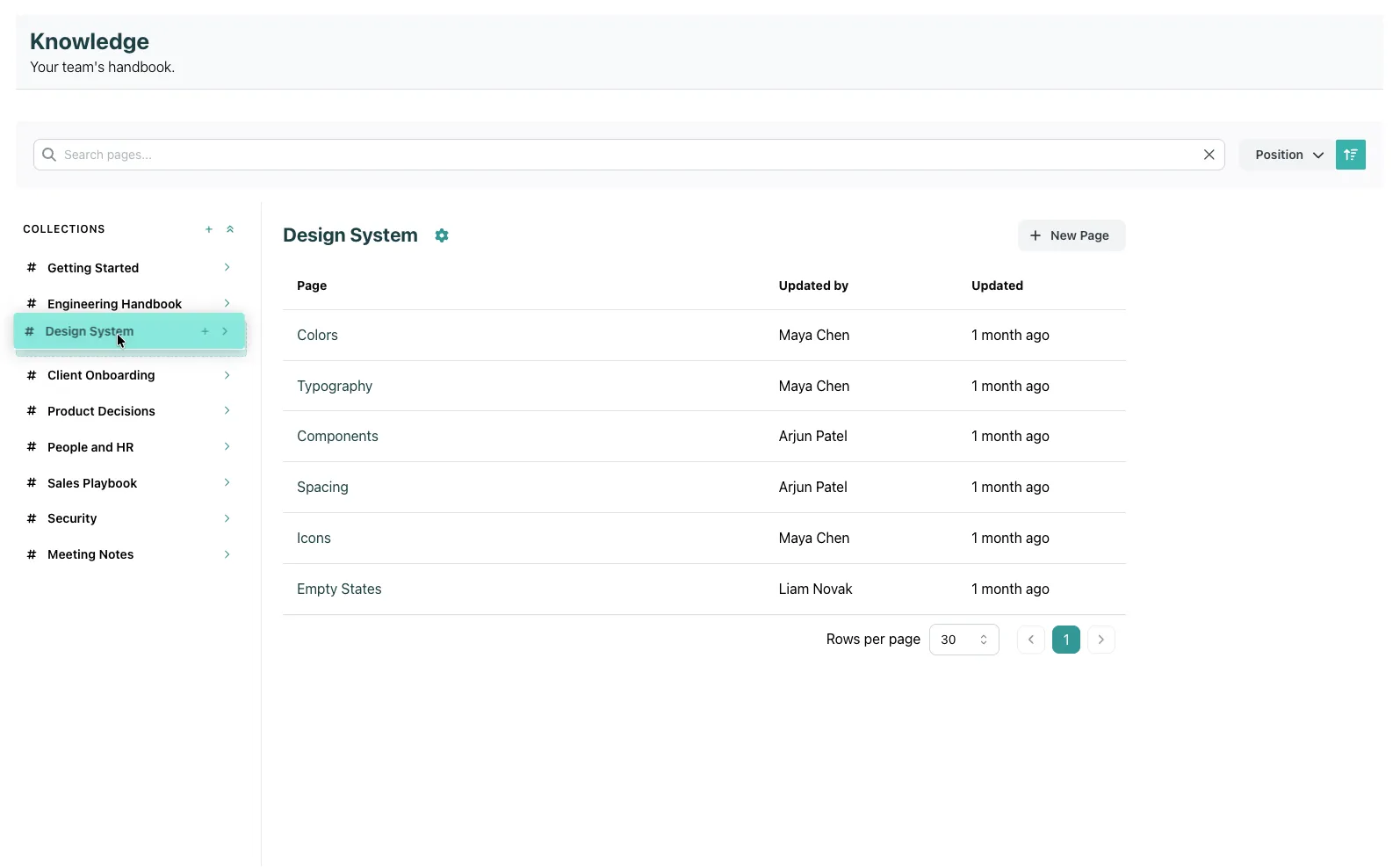
Collections are reordered by dragging them in the sidebar. Creating, editing and deleting collections is for Managers and Admins. Reading and page writes are for every member.
Collection overview
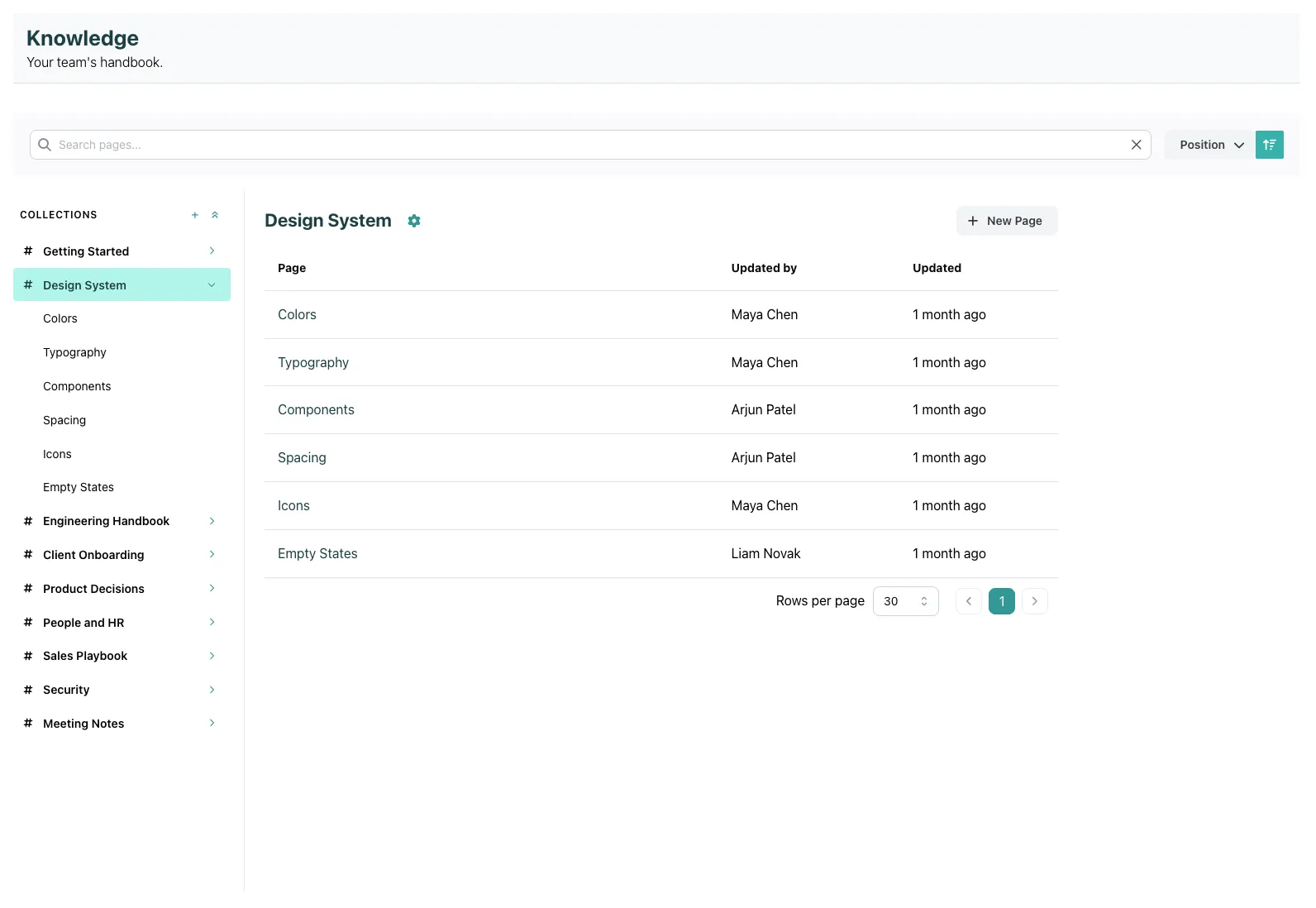
Section titled “Collection overview”Clicking a collection shows its pages as a table with the page, who updated it and when. The sort menu above the table orders the pages by position, updated or created date, in either direction. The last sort used is remembered.
New Page creates a page in the collection. The plus that appears when hovering a collection in the sidebar does the same.
A page has a title, a slug and a markdown body. Its slug is unique inside its collection and is generated from the title on create.
| Field | Values |
|---|---|
| Title | Text. |
| Slug | Generated from the title. Can be changed. |
| Content | Markdown. Headings, lists, task lists, tables, links and code blocks. |
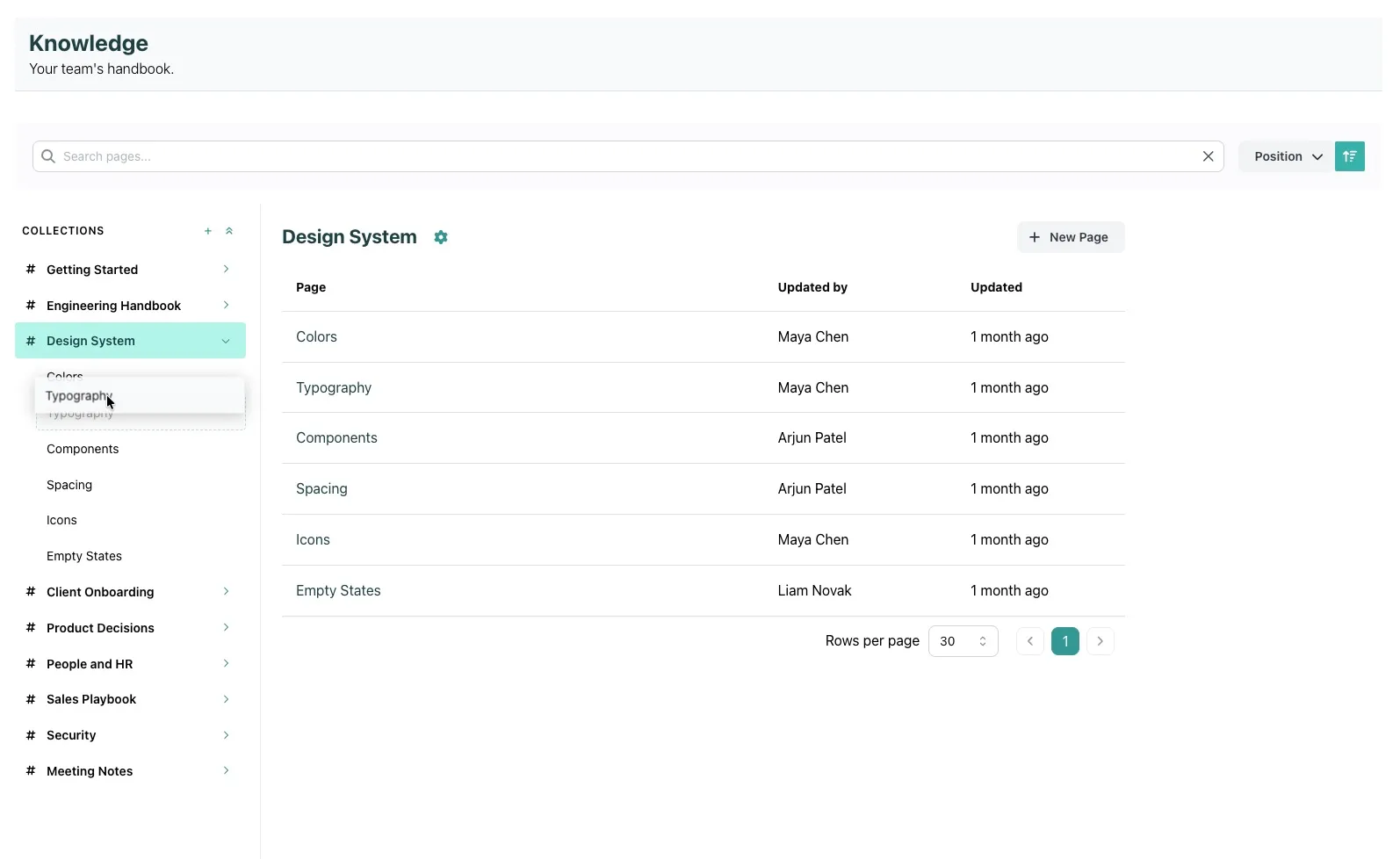
A page shows who updated it last and when. Previous and Next at the bottom walk the collection in its order. Pages are reordered by dragging them in the sidebar.
The pencil opens the editor. The menu on the title row deletes the page, together with its relations.
Task lists
Section titled “Task lists”A - [ ] item in the content renders as a checkbox. Ticking it saves the page at once, so a page can hold a living checklist. The same works in task and work item descriptions.
Headings
Section titled “Headings”When a page has three or more headings, On this page lists them to the right of the content and follows your scroll.
Search
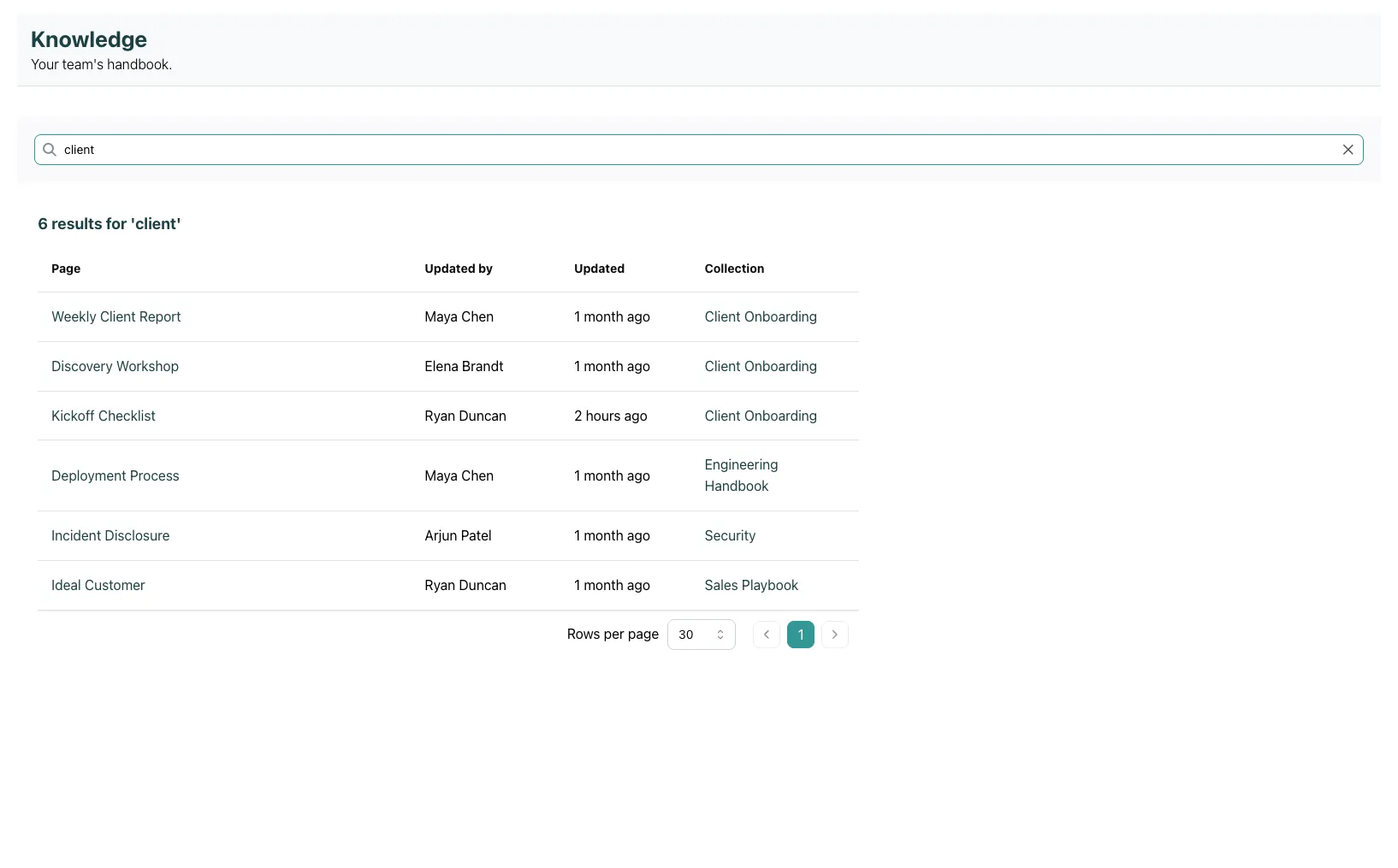
Section titled “Search”The search box above the panes searches every page in the company by title and content. Matching is by word start, so deploy finds pages about deployment. Results show the page, its collection and who updated it, with title matches ranked first.
Relations
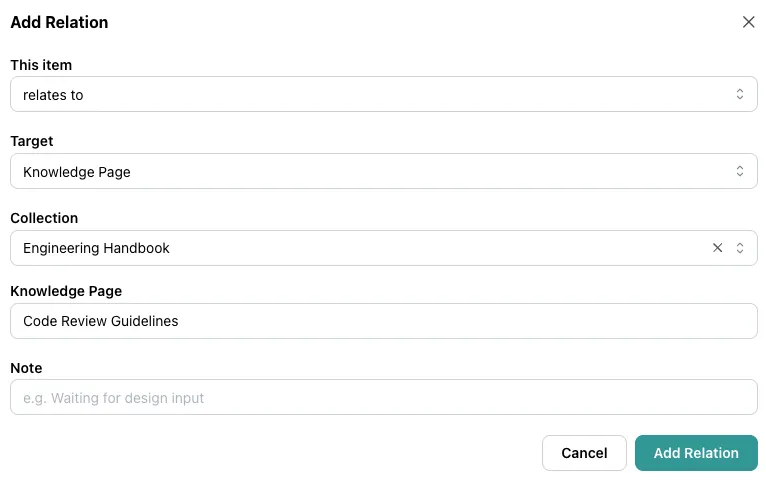
Section titled “Relations”A page can be related to tasks and work items, from the task or work item side: pick Knowledge Page as the target, narrow by collection if you like, and search for the page.
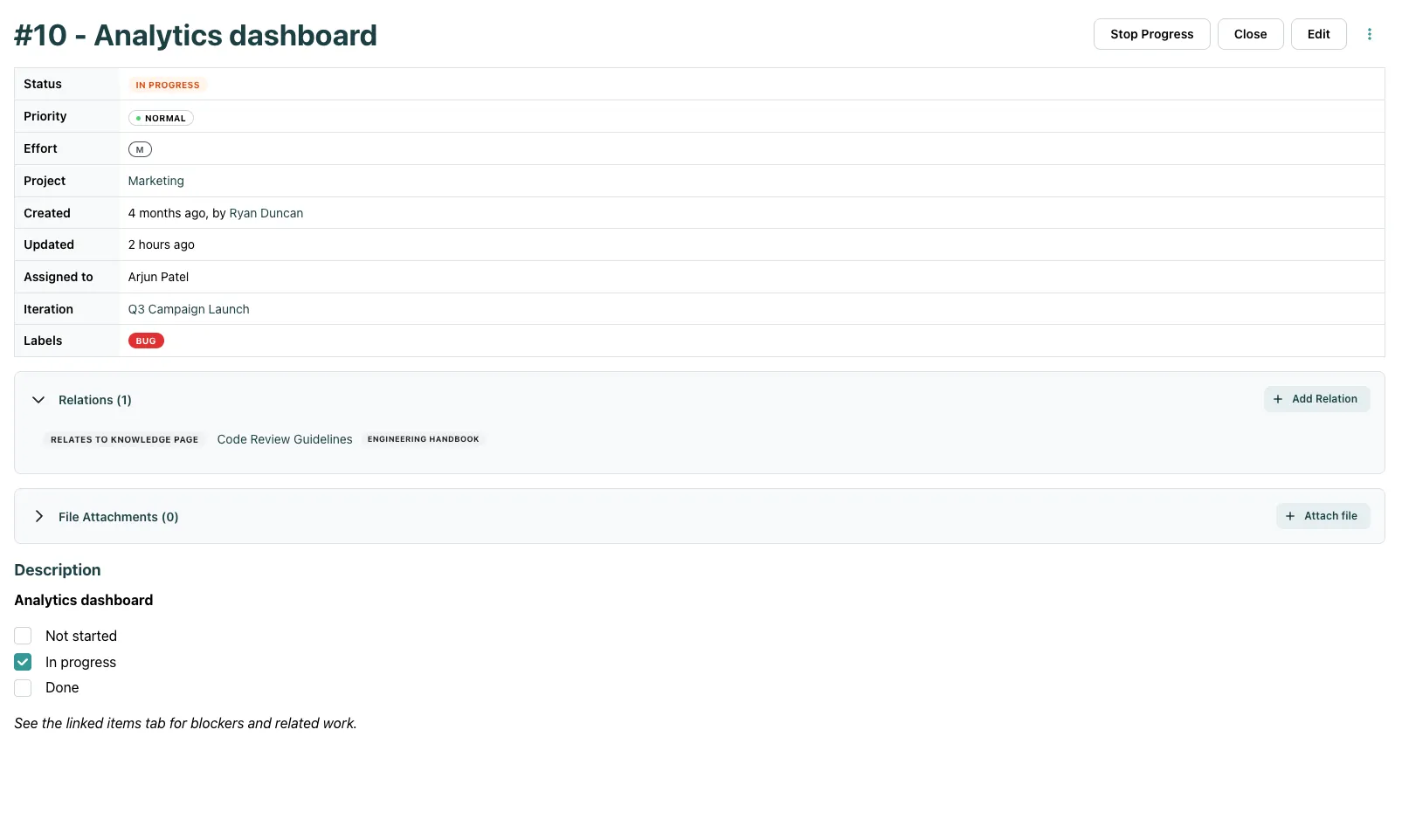
The task or work item then lists the page with its collection under Relations, and the page shows what is related to it under Linked from, with each item’s type and status. A relation goes away when either side is deleted.
AI assistants
Section titled “AI assistants”A connected assistant can list collections, list and search pages, read a page, create and update pages, and relate a page to a task or work item. See AI assistants.